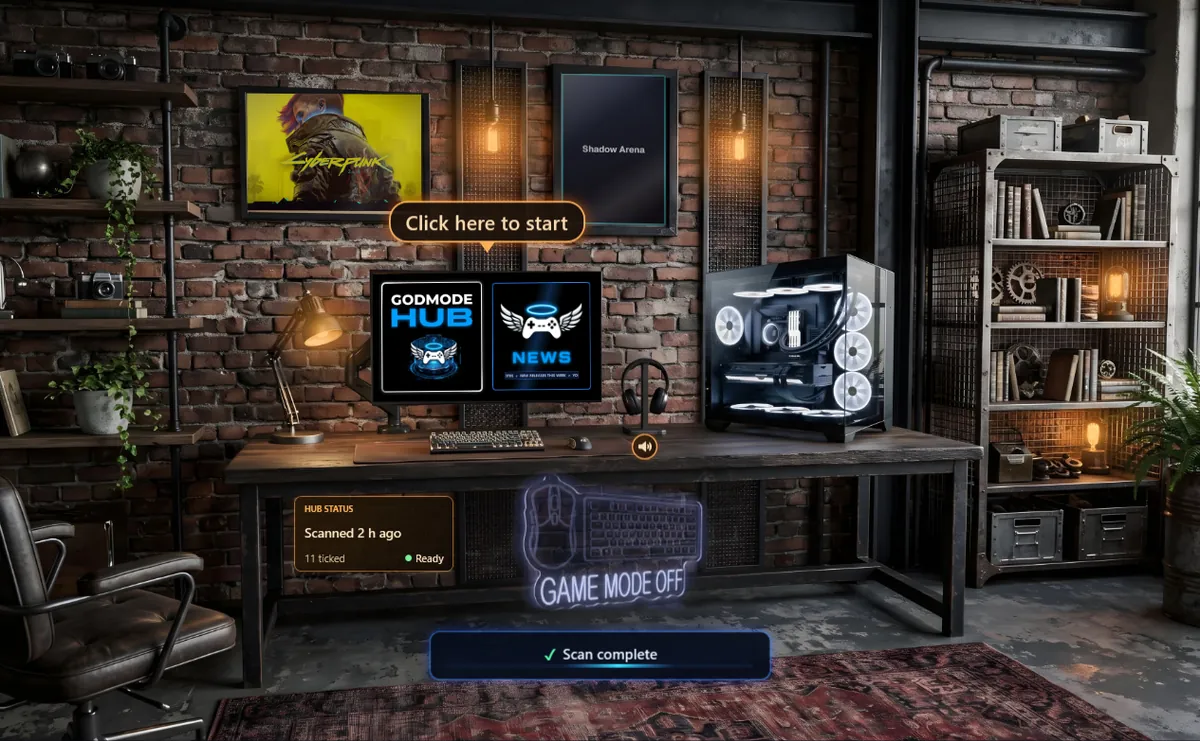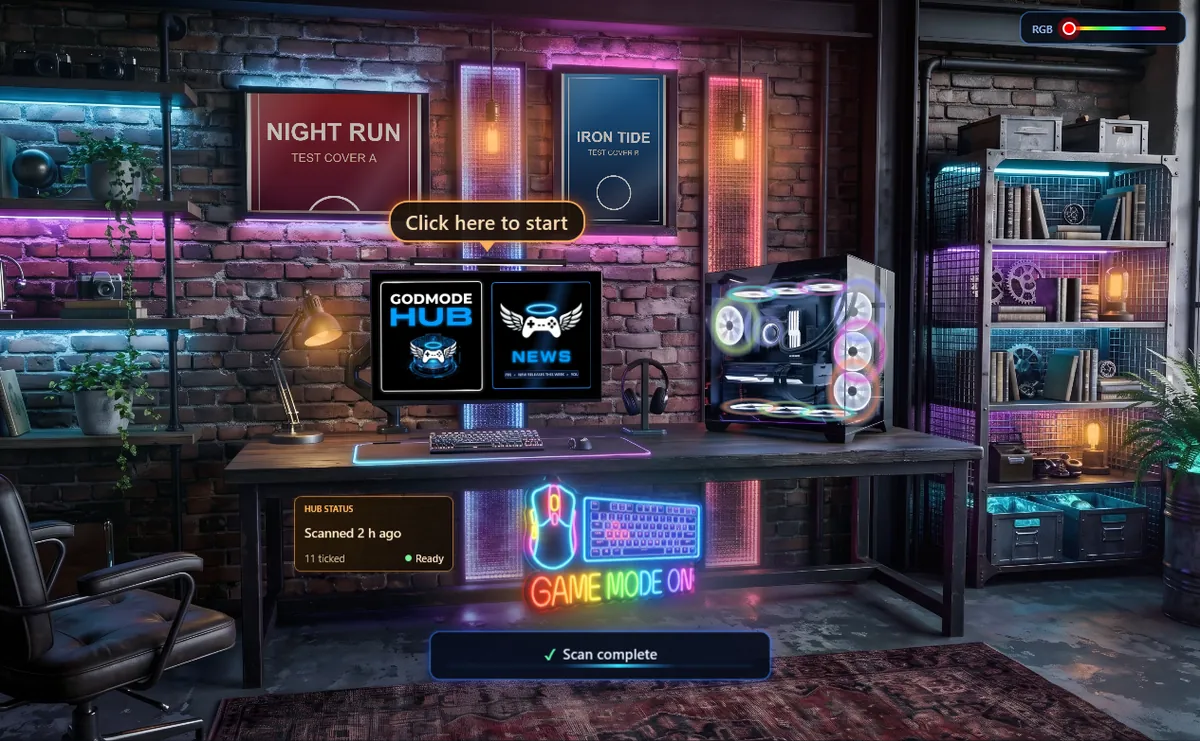



A dark brick gaming room lit warm amber: desk, monitor and a glass PC case, with a neon sign under the desk The same room with Game Mode on: magenta, purple and cyan RGB light on the walls, shelves and PC

One switch for a quieter PC while you play.

GodMode Hub pauses the background apps you choose, so fewer of them compete with your game. Turn it off and everything goes back the way it was.

Download for Windows

Free. Version 1.7.0. Windows 10 and 11, 64-bit.
Needs the .NET 8 Desktop Runtime

Flip the switch or click the neon sign to preview the room. This page never touches your PC.

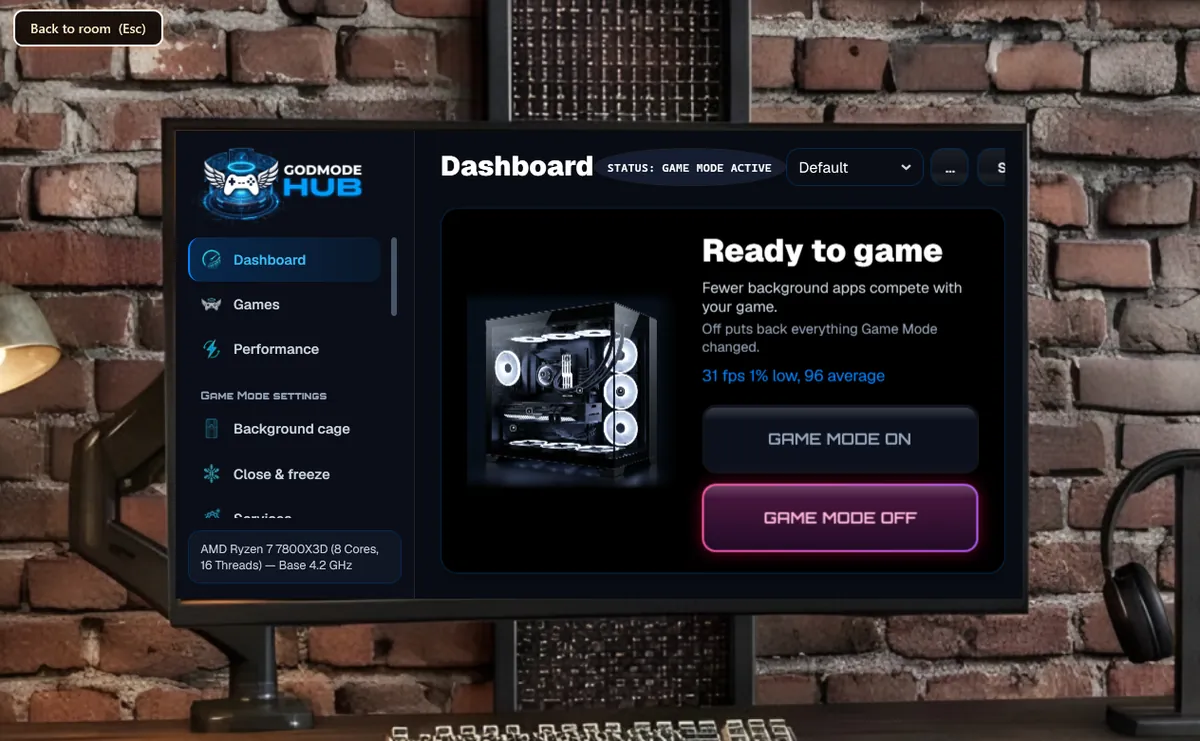
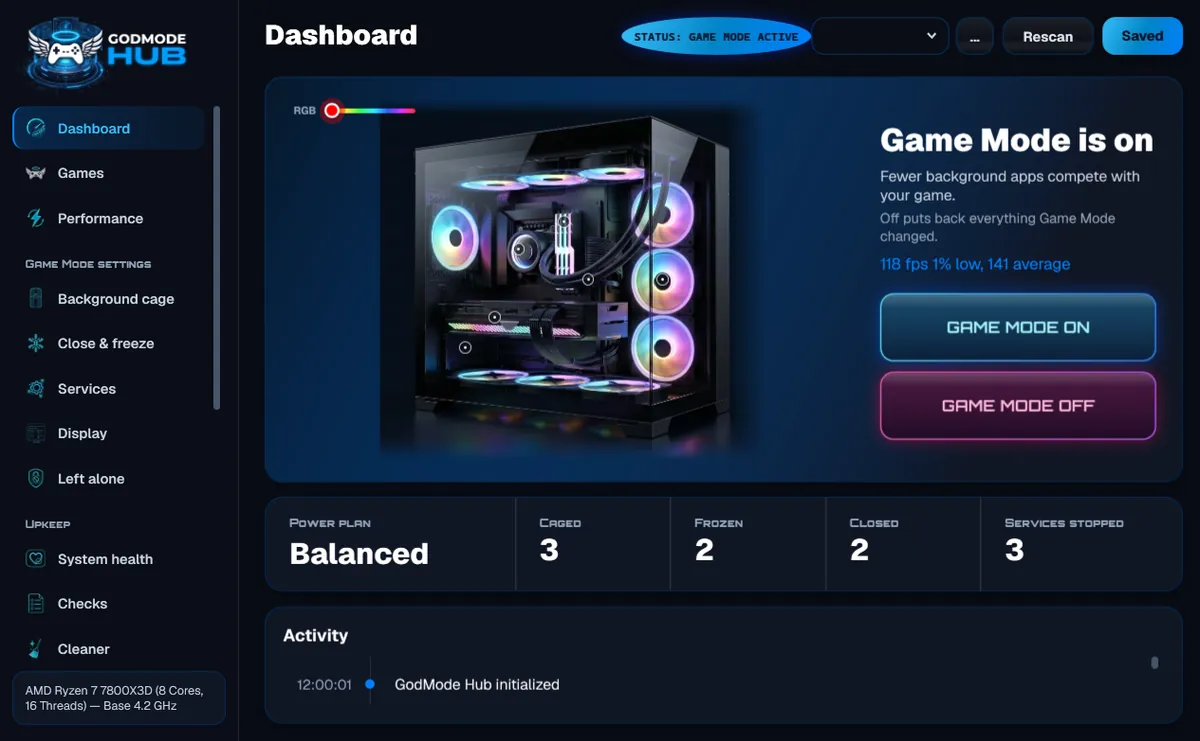
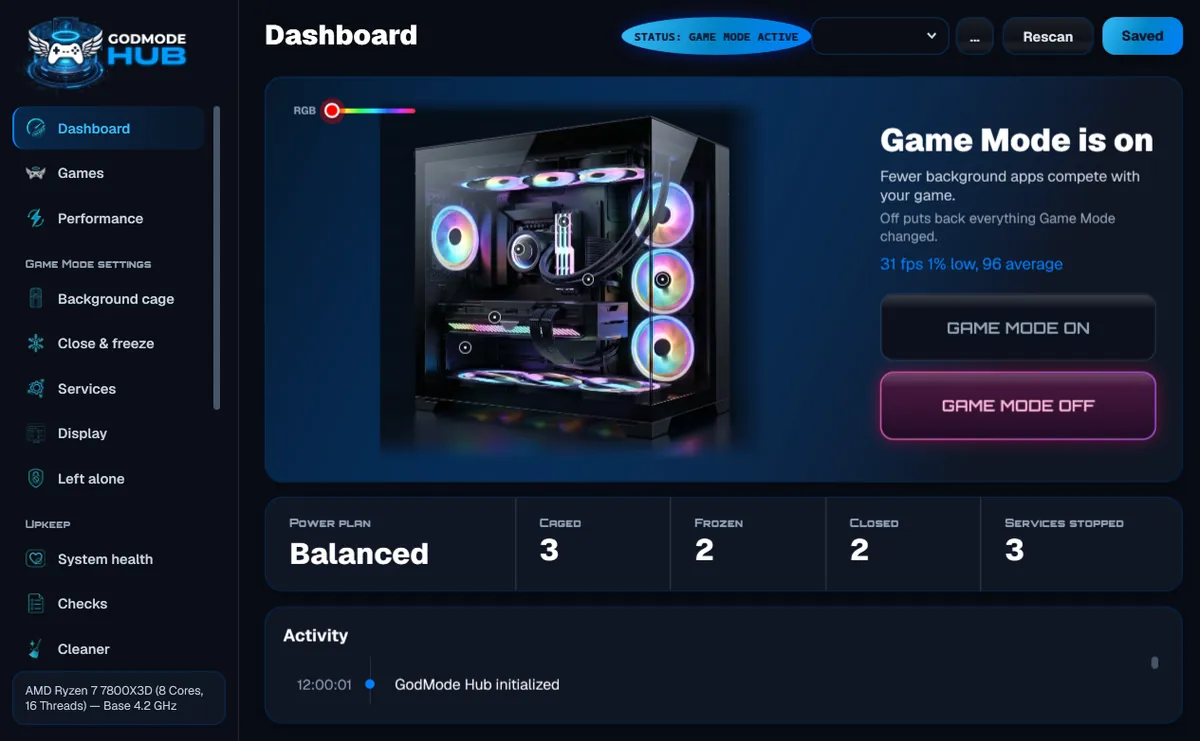
GodMode Hub dashboard with Game Mode on, showing the glass PC and the GAME MODE ON and OFF buttons

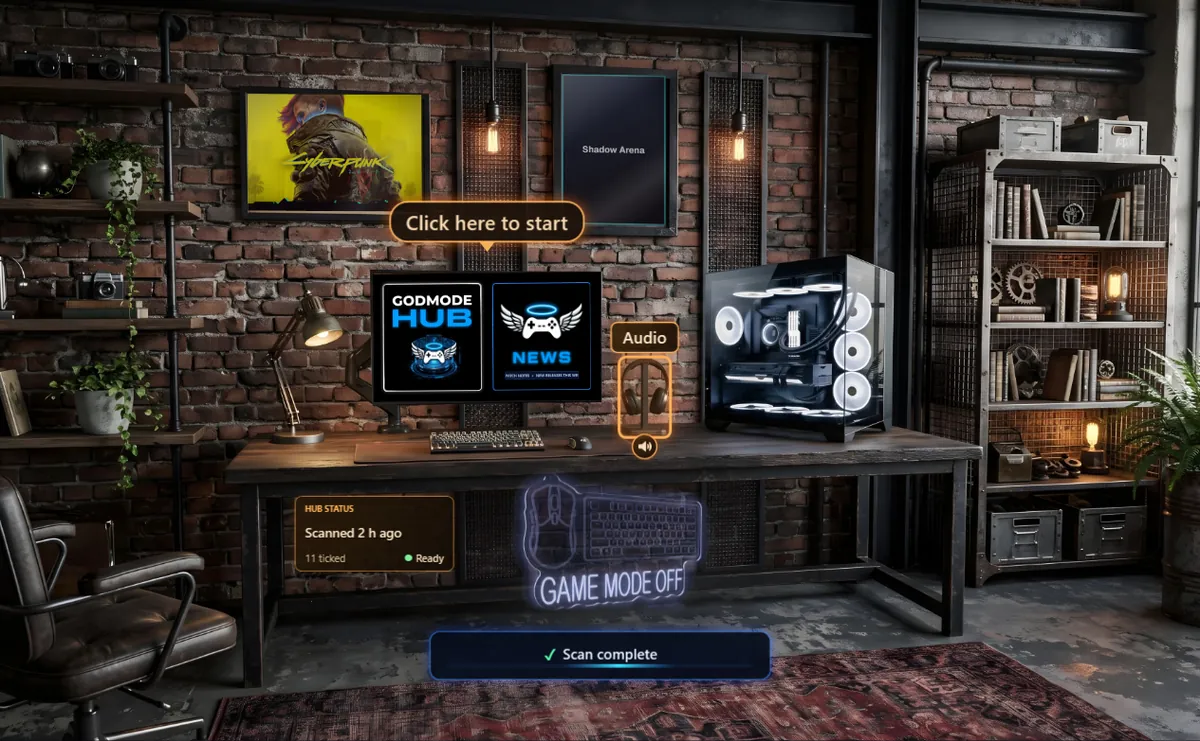
Click the monitor

In the room dashboard, the monitor shows two tiles: GODMODE HUB and NEWS. Keep scrolling.

The full app

Scan, tick, switch. Everything the room shows is a real control.

Two tiles on the monitor

Pick GODMODE HUB for Game Mode, scans and settings, or NEWS for GodMode News, right inside the app. Click a tile and the camera zooms into the monitor.

  • GODMODE HUB (white border) opens the full app
  • NEWS (blue border) opens GodMode News inside the Hub
  • In the classic sidebar, News lives on the room monitor too
The room monitor in the app showing two tiles: GODMODE HUB with a white border and NEWS with a blue border
Pick a tile
The camera zoomed into the monitor, with the app opening on screen
The camera zooms in
Beta

A room that shows what Game Mode is doing

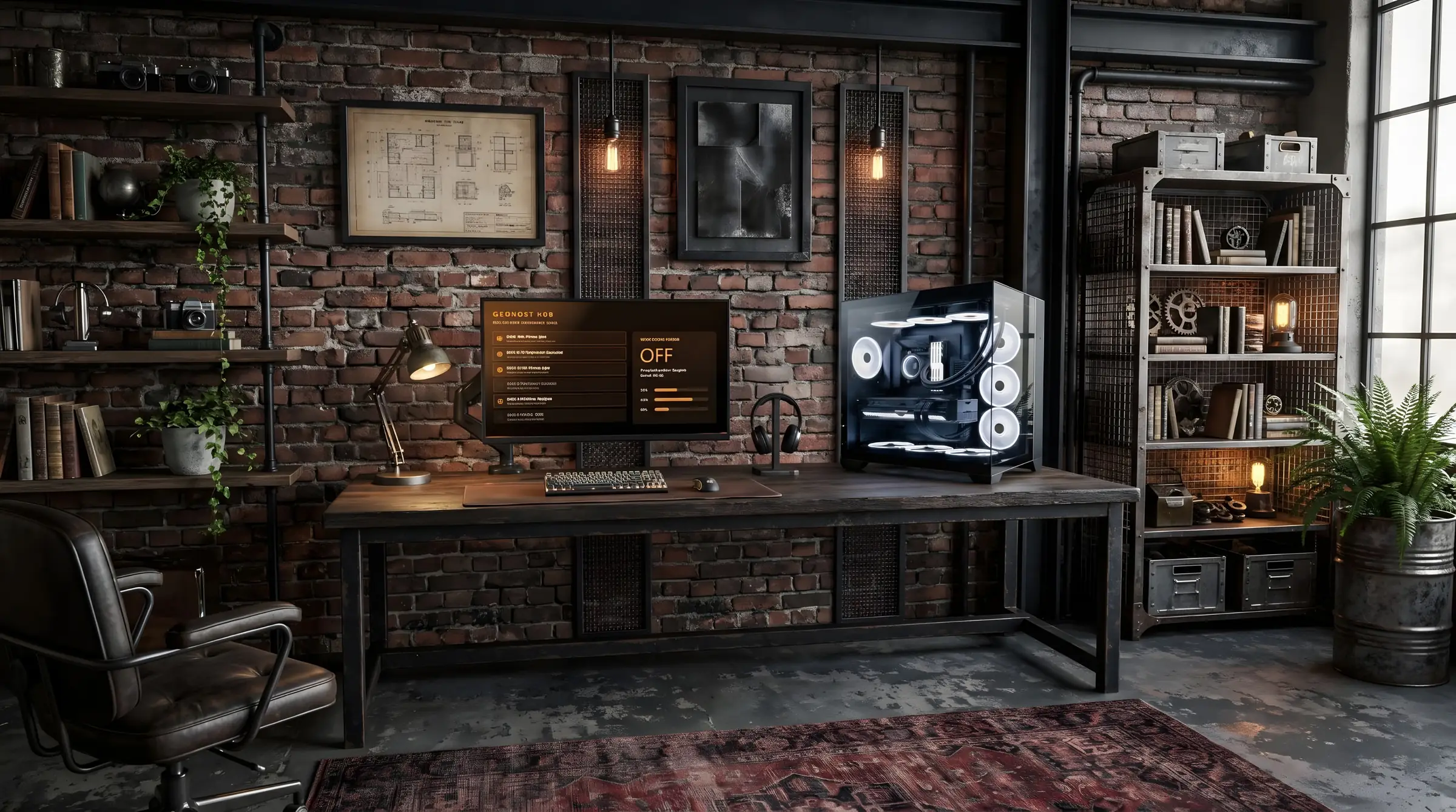
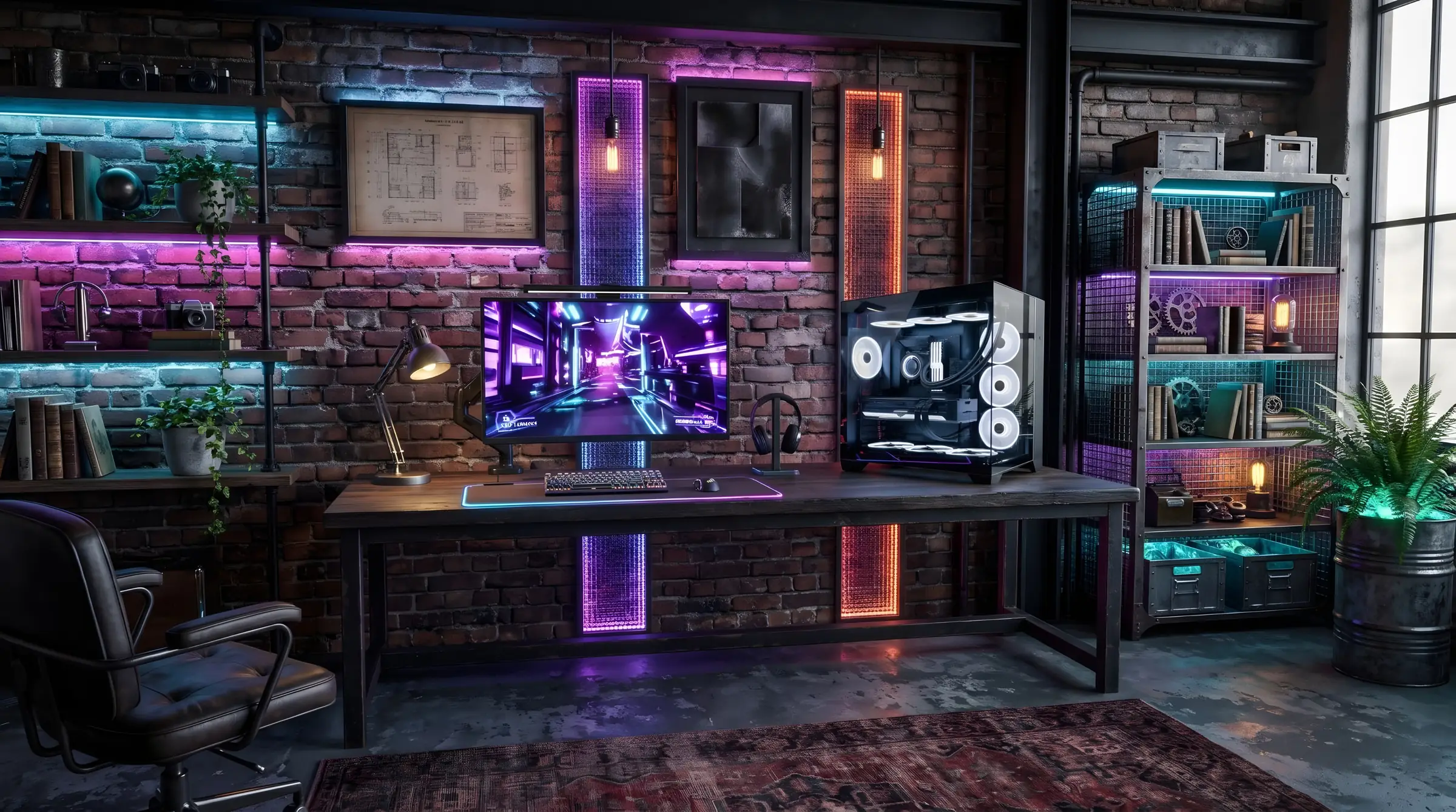
The room dashboard is a view of your setup. Warm amber light while Game Mode is off. When you turn it on, the neon sign lights up and the room turns magenta, purple and cyan.

  • Amber glass notes show your Hub status at a glance
  • Click the neon sign to restore everything
  • Click the monitor and pick GODMODE HUB (the full app) or NEWS
  • Prefer the classic dashboard? It is still there
The room dashboard in the app with Game Mode off, in warm amber light
Game Mode off
The room dashboard in the app with Game Mode on, in RGB light with the neon sign lit
Game Mode on
The room with the headphones on the desk highlighted and labelled Audio, which opens the audio panel
Click the headphones for audio
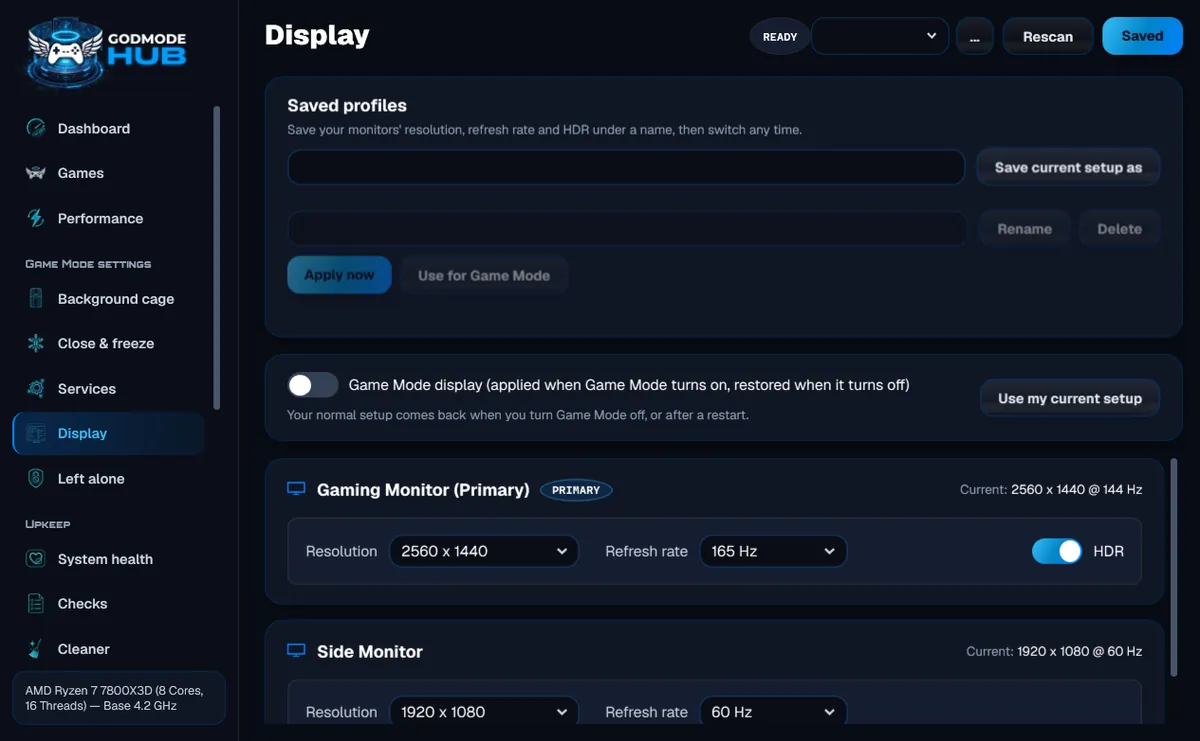
Display page with saved profiles and per-monitor resolution, refresh rate and HDR settings
Display profiles

How it works

  1. Scan

    See what's running. GodMode Hub suggests what to pause; only safe defaults are ticked, and the rest is up to you.

  2. Tick

    Pick the apps, services and settings Game Mode should change.

  3. Game Mode on

    Your picks are applied in one go. A restore file is saved first.

  4. Game Mode off

    Everything is put back in reverse order, even after a crash.

Everything in the box

One switch on top, and the tools around it for checking, cleaning and measuring.

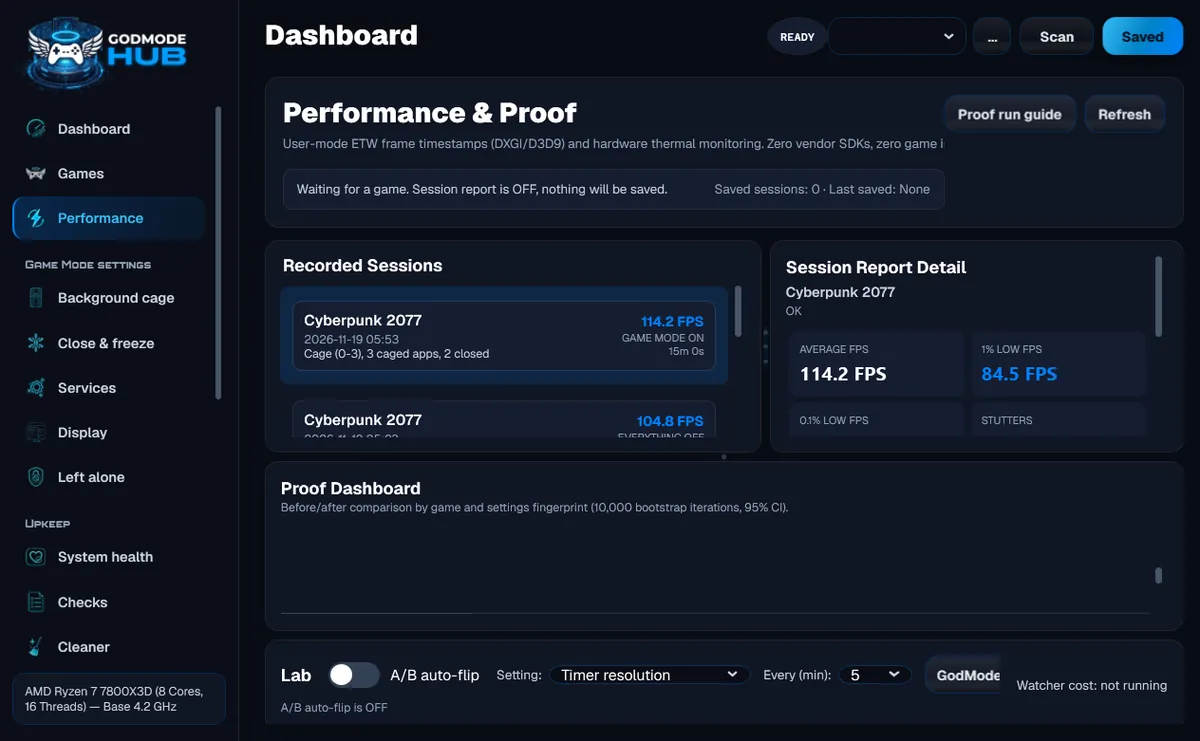
Performance and Proof page listing recorded sessions with average FPS and 1% low

Session reports

Frame data from PresentMon, recorded per game. Compare Game Mode on and off with your own numbers.
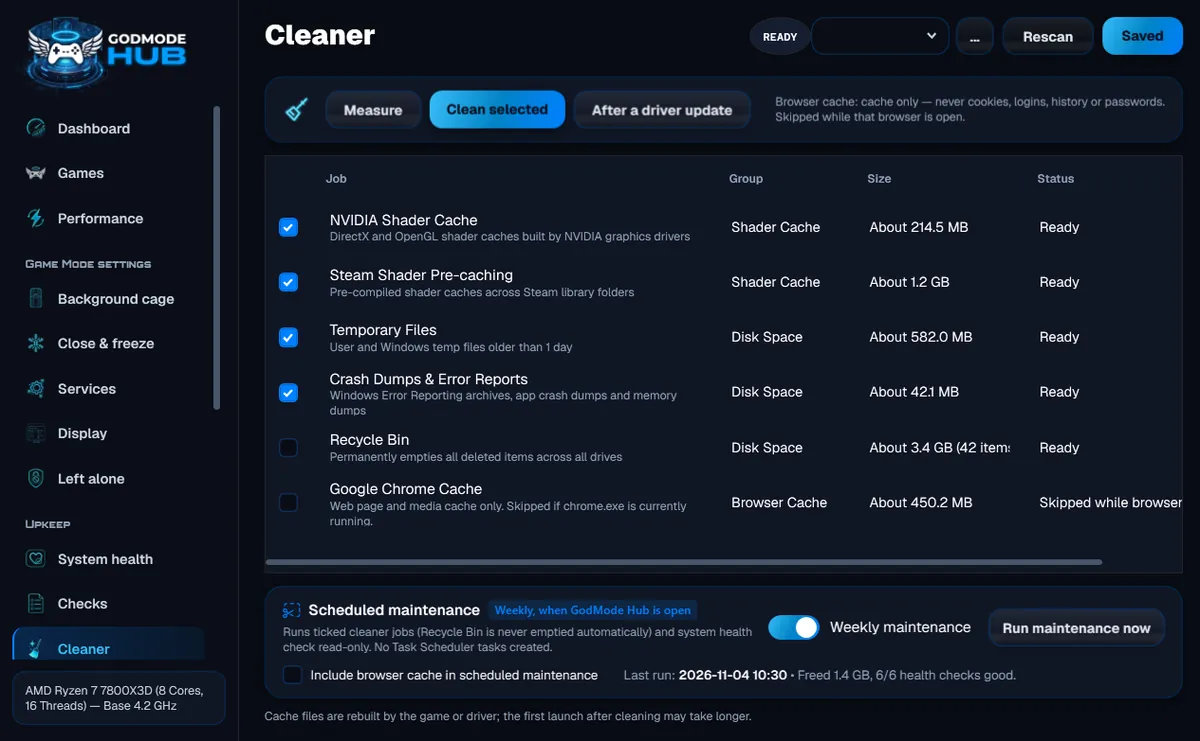
Cleaner page listing shader caches, temp files and crash dumps with sizes

Cleaner

Clear shader caches, temp files and old crash dumps. You see the size of each before you clear it.

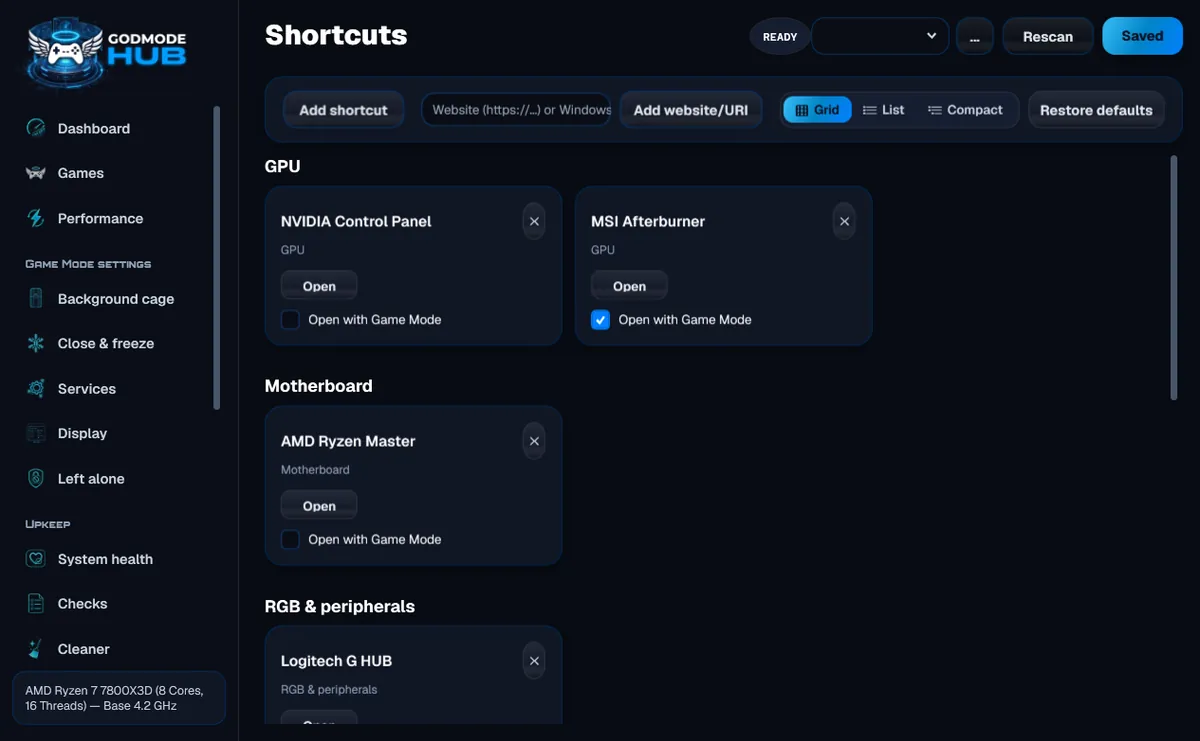
Shortcuts page with GPU, motherboard and RGB tool tiles

Shortcuts

Around 60 gaming tools, one click away.

Settings page with theme cards such as GodMode Electric, Night City 2077 and Synthwave 80s

Themes

Pick a look, from electric blue to synthwave, light or dark.

Dashboard with Game Mode on, the PC fans glowing with live colour rings and the current frame rate shown

Live while you play

Ring visuals around the PC follow what your game is doing while it runs.

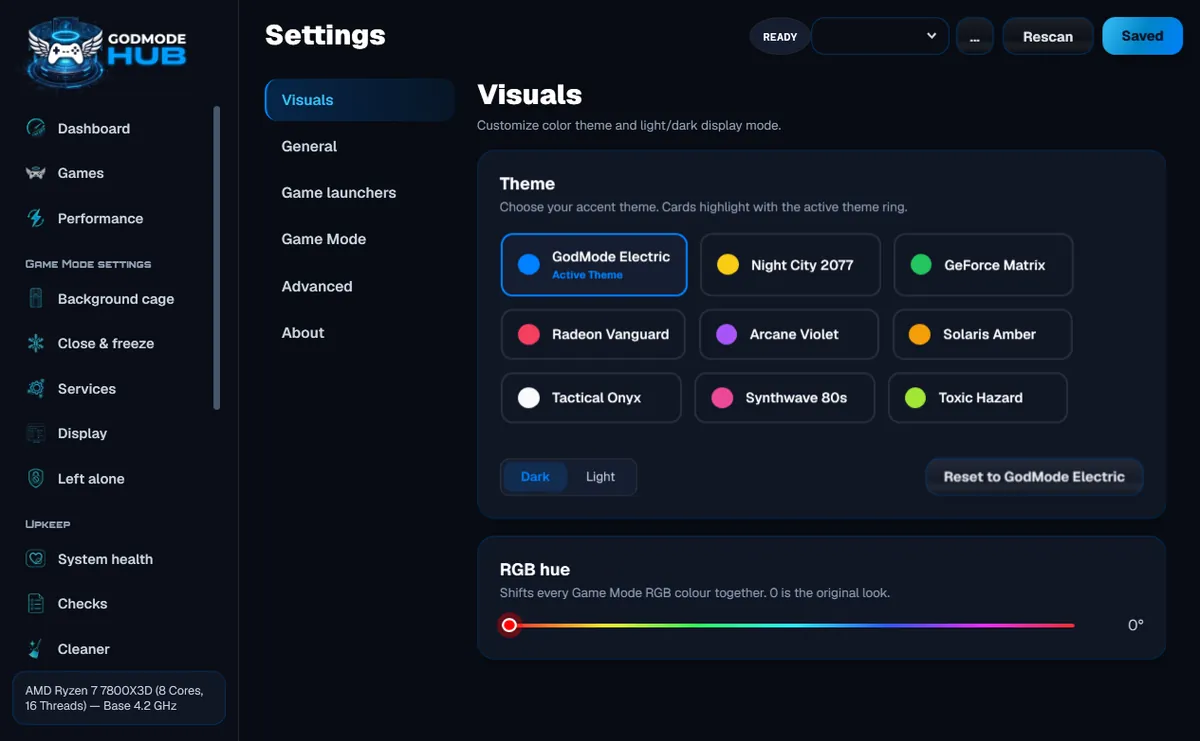
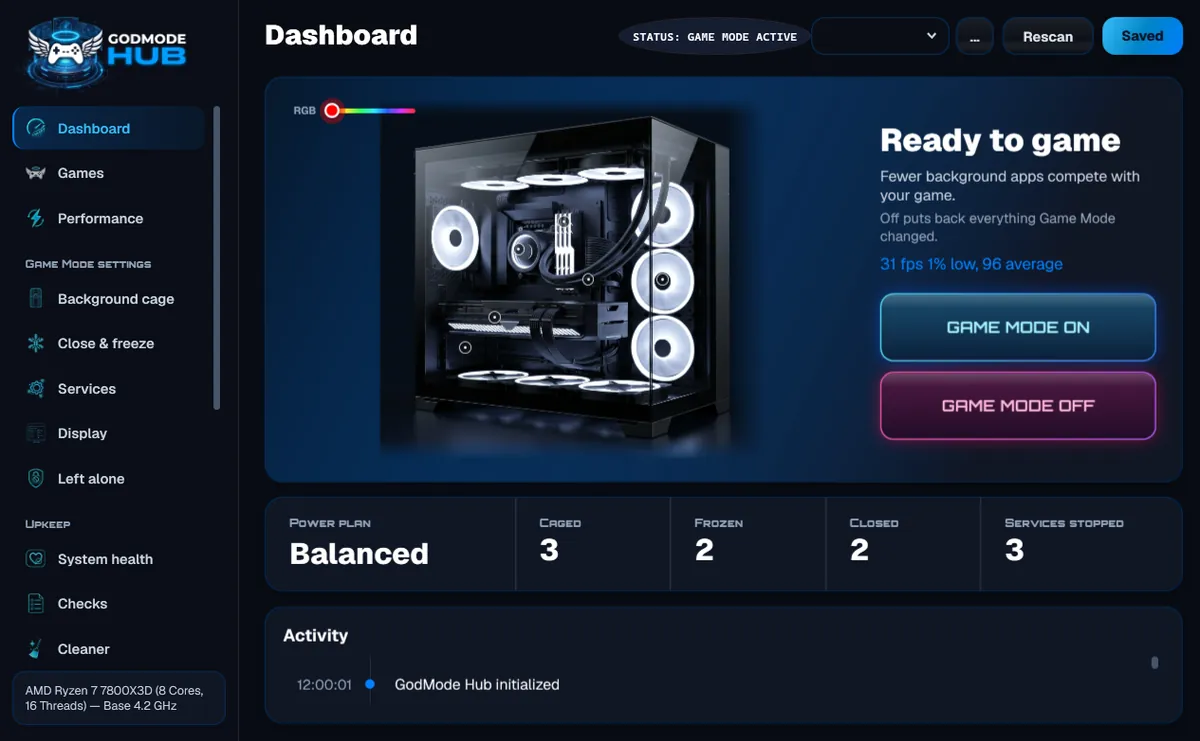
The classic GodMode Hub dashboard with the Ready to game panel

Pause background apps

Close or freeze only what you ticked. Fewer of them compete with your game.

  • Auto Game ModeTurns Game Mode on when a game starts.
  • Per-game profilesKeep different settings for different games.
  • Pre-game checksCheck drive health, drivers and network before you play.
  • Startup auditSee what starts with Windows.
  • Fake tweak and overlay detectorSpot tweaks that do nothing and overlays that cost frames.
  • Full restoreGame Mode off puts back everything it changed.

What it leaves alone

Some things are never paused, closed or slowed, whatever you tick. GodMode Hub never touches your games.

  • Your games and anything in a game library folder
  • Game launchers (Steam, Epic, Battle.net and others)
  • Anti-cheat
  • Voice chat
  • Audio programs
  • NVIDIA software
  • Windows and Windows Security

Questions

Will it give me more FPS?

Fewer background apps compete with your game. How much that helps depends on your PC and the game. The session report measures your own before and after, so you can see for yourself.

Is it safe with anti-cheat?

It never opens, pauses or changes anti-cheat, games or launchers. It only acts on the apps you tick.

How do I undo it?

Press Game Mode off. A restore file is saved before anything changes, so it can finish putting things back even after a crash or restart.

What do I need?

Windows 10 or 11, 64-bit, and the free .NET 8 Desktop Runtime. Run it as administrator for Game Mode and frame measurement.

Does it cost anything?

No. GodMode Hub is free.

Ready when your game is

Scan once, tick what you want paused, and keep one switch for game time.

Download for Windows

Free. Version 1.7.0. Windows 10 and 11, 64-bit.
Needs the .NET 8 Desktop Runtime
New in 1.7

  • 3D audio panel: click the headphones in the room to set output, microphone and app volumes, and pick a gaming audio profile
  • Display profiles: save monitor resolution, refresh rate and HDR, and switch any time; monitors are matched by connector when restored
  • Live ring visuals around the PC while a game runs
  • New sounds
  • Safer restore: app identity is checked before anything is touched, and services Game Mode stopped are started again on OFF